
Subaru Forester: Digital Key 2 : (if equipped) / Digital key 2 (card key)
How to register Digital Key 2 (card key)
To use a card key as a Digital Key 2 for your Kia Telluride, the card must first be registered in the vehicle system by following the procedure below:
-
Enter the vehicle with 2 smart keys.
1) Wireless charging pad
-
Check whether the Use menu is activated.
With the vehicle turned on, select Setup > Vehicle > Digital keys > NFC card key > Use on the infotainment system.
-
Digital key
-
NFC card key
-
Use
-
-
With the vehicle turned on, place the card key on the wireless charging pad
(1), and then tap Save on the infotainment system screen. The registration process
will begin automatically.
-
Charging pad
When the Digital Key 2 card key has been saved successfully, a confirmation message appears on the infotainment system screen.
TIP
-
The infotainment system may change after software updates. For current instructions and menu descriptions, refer to the user manual provided in the infotainment system and the quick reference guide.
-
If a Digital Key 2 card key is already saved in the Kia Telluride, the Save menu is disabled. To register a card key again, delete the existing digital key first, then repeat the registration procedure.
-
Both smart keys must be inside the vehicle to register the Digital Key 2 card key.
-
A registered Digital Key 2 card key is assigned to this vehicle and cannot be used with another vehicle.
-
How to use the Digital Key 2 (card key)
Card key touch control
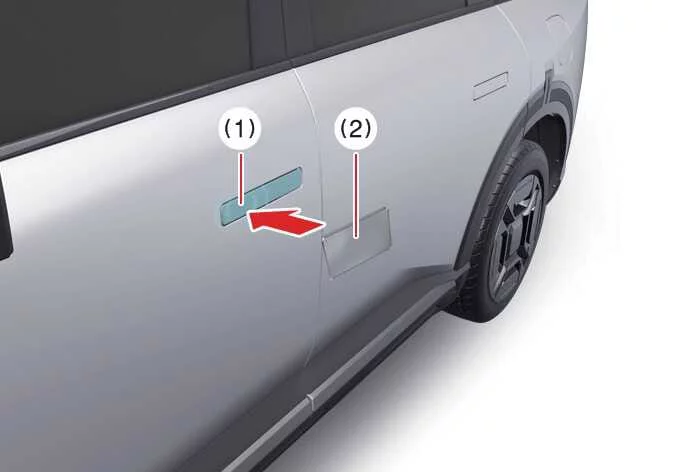
The Kia Telluride Digital Key 2 card key allows you to conveniently lock, unlock, and start the vehicle without using the conventional smart key. Simply touch the registered card key to the exterior door handle or place it on the wireless charging pad to authenticate the vehicle.
|
|
Locking and unlocking the doors
-
Touch the NFC antenna area of the registered Digital Key 2 card key to the authentication pad (1) on either the driver's or front passenger's outside door handle for more than 2 seconds to lock or unlock the Kia Telluride.
-
After locking the vehicle, always verify that the doors are securely locked. If no door is opened, the vehicle will automatically relock approximately 30 seconds after being unlocked.
-
For reliable operation, position the center of the NFC card key directly over the authentication area on the exterior door handle.
TIP
When using a smartphone NFC antenna or the Digital Key 2 card key on the outside door handle authentication pad, the doors will not lock and a warning beep may sound if any of the following conditions exist:
-
The smart key is still inside the vehicle.
-
The vehicle is in the ACC or ON position.
-
One or more doors, the hood, or the liftgate remain open.
Starting the vehicle
Place the registered Digital Key 2 card key on the wireless charging pad, press and hold the brake pedal, then press the ENGINE START/STOP button to start the Kia Telluride.
-
After the engine starts successfully, remove the card key from the charging pad before driving.
For additional information, refer to the ENGINE START/STOP button section.
WARNING
The vehicle can be started whenever a registered Digital Key 2 card key is correctly positioned on the wireless charging pad. Never leave children or individuals unfamiliar with the system unattended inside the vehicle, as unintended vehicle operation could result in serious injury or death. Always take the registered card key with you when leaving your Kia Telluride to reduce the risk of unauthorized vehicle access.
NOTE
-
The Digital Key 2 card key may not function correctly under the following circumstances:
-
The card key is not centered on the door handle authentication pad or wireless charging pad.
-
The card key overlaps another NFC-enabled device, such as a smartphone, credit card, or access card.
-
If authentication fails, move the card key at least 4 inches (10 cm) away from the authentication pad before trying again.
-
-
A strong impact may damage the card key. If the card key becomes damaged, replace it with a new one and register it again before use.
-
A lost or physically damaged card key is not covered under the vehicle warranty. Replacement costs are the owner's responsibility.
-
Extended exposure to excessive heat or direct sunlight may reduce card key performance or cause it to malfunction.
-
Do not leave the card key on the wireless charging pad while driving. Remove it immediately after starting the vehicle.
-
The card key may not operate correctly if it is positioned between the charging pad and a smartphone that is being wirelessly charged, such as when the card key is stored inside the smartphone case.
How to delete Digital Key 2 (card key)
- Start the Kia Telluride with the smart key, and keep the smart key inside the vehicle throughout the Digital Key 2 card key deletion process.
-
With the vehicle in the ON position, place the registered card key on the in-vehicle authentication pad (wireless charging pad). Then select Setup > Vehicle > Digital key > NFC card key > Delete using the infotainment system.
If no card key has been registered, the Delete menu will remain unavailable.
-
Digital key
-
NFC card key
-
USE
-
Delete
Once the Digital Key 2 card key has been successfully removed, a confirmation message will appear on the infotainment display or instrument cluster.
TIP
The infotainment system menus may vary after software updates. Always refer to the latest infotainment user guide for current menu layouts and operating instructions.
-

 Personalized profile and vehicle settings
When a smartphone registered as a Kia Digital Key 2 is linked to a user profile, the Kia Telluride can automatically apply that driver's personalized vehicle settings...
Other information:
Kia Telluride (LQ2, 2027-2026) Owner's Manual: Refrigerant label
The refrigerant label is located underneath the hood and provides important air conditioning system information, including: The specified refrigerant type. The correct refrigerant charge amount...
Kia Telluride (LQ2, 2027-2026) Owner's Manual: Active Air Flap (AAF): (if equipped)
The Active Air Flap (AAF) system in the Kia Telluride controls the air flap located below the front bumper to help manage airflow for component cooling and improved fuel efficiency. Active Air Flap malfunction Check Active Air Flap system The Active Air Flap system may not operate normally if the flap is temporarily held open by foreign material, or if the controller area is affected by snow, rain, ice, dirt, or other external conditions...
Categories
- Manuals Home
- Replacing battery of access key fob
- Automatic door locking/unlocking
- All-Wheel Drive warning light
- New on site
- Most important about car
Outside temperature indicator
The outside temperature is displayed on the multi-function display (color LCD).
NOTE
The outside temperature indicator shows the temperature around the sensor. However, the temperature may not be indicated correctly or the update may be delayed in the following conditions. While parking or driving at low speeds When the outside temperature changes suddenly (example: when going in and out of an underground parking area or when passing through a tunnel) When starting the engine after being parked for a certain period of time The temperature unit cannot be changed.