
Subaru Forester: Digital Key 2 (smartphone) / How to use the Digital Key 2 (smartphone)
Smartphone touch control
With Kia Digital Key 2, you can lock and unlock your Kia Telluride without opening the Kia Access App. Simply touch the smartphone to the authentication area on the outside door handle. To start the vehicle, place the registered smartphone on the wireless charging pad. Ensure that the smartphone's NFC antenna is correctly aligned with the authentication area for reliable operation.
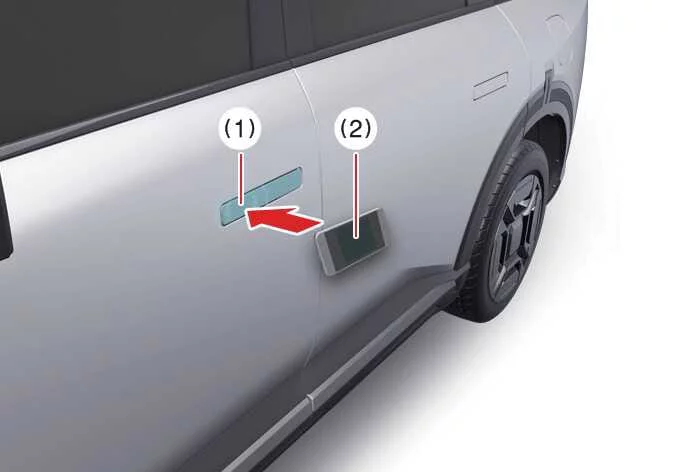
|
|
On Apple iPhone® devices, the NFC antenna is positioned near the top of the back panel. On Apple Watch®, it is located beneath the center of the display. This is the same area used for contactless payments. If you are unsure where the NFC antenna is located on your smartphone, consult the documentation provided by the smartphone manufacturer.
Locking and unlocking the doors
-
Touch the smartphone's NFC antenna to the authentication pad on either the driver's or front passenger's outside door handle for approximately two seconds to lock or unlock the doors.
-
After unlocking, the doors will automatically relock if no door is opened within approximately 30 seconds.
-
If the smartphone digital key does not respond, move the smartphone at least 4 inches (10 cm) away from the authentication pad and try again.
UWB (Ultra Wide Band) is an ultra-wideband wireless communication technology, while NFC (Near Field Communication) enables secure short-range communication for Digital Key authentication.
For smartphones without UWB support:
To lock or unlock the Kia Telluride, place the smartphone's NFC antenna against the authentication pad on the driver's or passenger's outside door handle for approximately two seconds.
For smartphones with UWB support:
-
Carry the registered smartphone with you and touch the lock/unlock sensor located on the curved section of the outside door handle to lock or unlock the doors.
-
If the Approach Unlock feature is enabled, the doors unlock automatically as you approach the front door handle while carrying the registered smartphone.
TIP
-
If you remain close to the Kia Telluride for an extended period while carrying a UWB-compatible smartphone, the automatic door unlock function may temporarily pause to reduce unnecessary operation.
-
Keeping the smartphone inside a back pocket, handbag, or other enclosed location may weaken the Bluetooth signal, resulting in slower locking, unlocking, or vehicle starting.
-
Window tint containing metallic materials may interfere with Digital Key communication and reduce system performance.
TIP
The doors will not unlock and a warning beep may sound when using Digital Key 2 under any of the following conditions:
-
A registered smart key is already inside the vehicle.
-
The vehicle is in the ACC or ON position.
-
You attempt to lock the vehicle while one or more doors, the hood, or the liftgate remain open.
-
Metallic window tint or similar materials interfere with Digital Key communication.
Starting the vehicle
Place the registered smartphone on the wireless charging pad, press the brake pedal, and then press the ENGINE START/STOP button to start your Kia Telluride.
After the engine has started successfully, you may remove the smartphone from the charging pad.
For additional information, refer to the ENGINE START/STOP button section.
For smartphones without UWB support:
-
Position the smartphone so that its NFC antenna is centered on the wireless charging pad, press the brake pedal, and then press the ENGINE START/STOP button.
-
Once the engine has started, the smartphone can be removed from the charging pad.
-
Because NFC antenna locations differ among smartphone models, slight adjustments to the phone's position on the charging pad may improve communication if authentication does not occur immediately.
For smartphones with UWB support:
-
Carry the registered smartphone inside the Kia Telluride, press the brake pedal, and then press the ENGINE START/STOP button to start the engine.
-
To start the vehicle remotely, use the compatible application provided by the smartphone manufacturer to lock the vehicle, then press the remote start command within four seconds. The hazard warning lights will flash to confirm remote engine start.
-
To stop the remotely started vehicle, activate the remote start function again.
WARNING
The Kia Telluride can be started whenever a registered smartphone is placed on the in-vehicle authentication pad (wireless charging pad). Never leave children or anyone unfamiliar with the system unattended inside the vehicle. Always take the registered smartphone with you when leaving the vehicle to help prevent unauthorized operation or theft.
TIP
The first operation of Digital Key 2 for a newly shared user may take slightly longer than usual.
Hold the smartphone close to the authentication pad on the outside door handle until the lock or unlock operation is completed.
During the first use of the interior authentication pad, recognition may require a few additional moments before normal operation begins.
Operating the liftgate
For smartphones with UWB support:
-
When the vehicle is locked, carry the registered smartphone and press the liftgate release button to unlock and open the liftgate.
-
If the Smart Liftgate feature is enabled, the liftgate opens automatically after you remain within the detection area behind the vehicle for more than three seconds while carrying a registered smartphone.
WARNING
-
Always keep the registered smartphone with you before closing the liftgate. If the vehicle remains locked and the smartphone is left behind, unlocking the doors may not be possible after the liftgate is closed.
-
Since the Kia Telluride can be started using a registered smartphone placed on the authentication pad, never leave children or unauthorized persons unattended inside the vehicle. Always take the registered smartphone with you when exiting the vehicle.
-
Metallic window tint may reduce Bluetooth communication quality and affect Digital Key performance.
-
If the smartphone is carried inside a bag or back pocket, Bluetooth communication may be weakened, causing delayed responses when locking, unlocking, or starting the vehicle.
For smartphones equipped with UWB, Kia Digital Key 2 operates only while the smartphone and the Kia Telluride maintain an active Bluetooth connection.
-
Bluetooth operating range may vary depending on surrounding environmental conditions and sources of wireless interference.
-
Metal-containing window tint can reduce Bluetooth signal strength and affect communication reliability.
-
Keeping the smartphone inside a pocket, backpack, or handbag may weaken the Bluetooth connection and increase the time required for locking, unlocking, or starting the vehicle.
To help conserve battery life for both the smartphone and the Kia Telluride, Digital Key 2 with UWB remains active only for a limited period when the vehicle is not being used.
You can verify the connection status between the vehicle and your smartphone through the smartphone's settings or by using the application supplied by the smartphone manufacturer.

 How to delete digital key (smartphone)
Turn the Kia Telluride on with the smart key, and make sure the registered smart key remains inside the vehicle throughout the Digital Key 2 smartphone deletion process...
Other information:
Kia Telluride (LQ2, 2027-2026) Owner's Manual: Reporting Safety Defects (U.S. only)
If you ever reasonably believe that your Kia Telluride has a structural or mechanical defect which could cause a sudden crash, severe physical injury, or potential fatality, you should immediately inform the National Highway Traffic Safety Administration (NHTSA) in addition to promptly notifying Kia America, Inc...
Kia Telluride (LQ2, 2027-2026) Owner's Manual: Limitations of Forward Collision-Avoidance Assist
While the advanced safety suite in your Kia Telluride is engineered to provide an extra layer of protection on the road, it is important to acknowledge that the Forward Collision-Avoidance Assist (FCA) system has functional limitations. For detailed information regarding the specific constraints of the interior camera system, please consult the section dedicated to the Forward Attention Warning (FAW)...
Categories
- Manuals Home
- Changing a flat tire
- Disabling functions
- Alarm system setting
- New on site
- Most important about car
Average vehicle speed
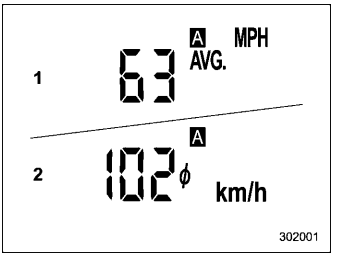
This display shows the average vehicle speed since the trip meter was last reset. Pressing the TRIP RESET switch toggles the display between the average vehicle speed corresponding to the A trip meter display and the average vehicle speed corresponding to the B trip meter display. When either of the trip meter displays is reset, the corresponding average vehicle speed value is also reset.
