
Subaru Forester: Surround View Monitor (SVM): (if equipped) / Surround View Monitor operation
Parking/View button
|
(1) Parking/View button
Press the Parking/View button (1) to turn Surround View Monitor ON.
Press the same button again to turn Surround View Monitor OFF.
Front-view
|
|
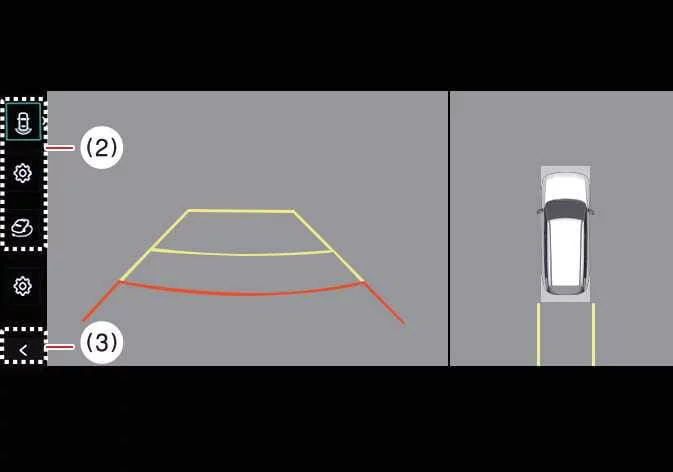
(2) View switching button
(3) Back button
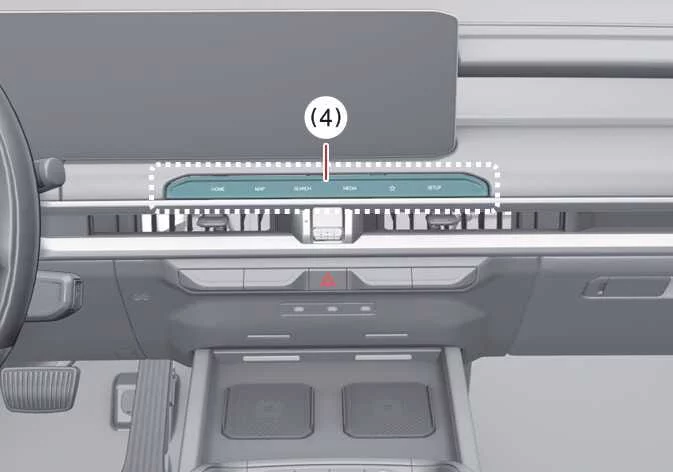
(4) Infotainment system operation button
The front-view function helps support safer low-speed parking by showing the area in front of the Kia Telluride on the infotainment display according to the selected camera view and settings.
Parking
The Front-view function of Surround View Monitor activates during parking under the following conditions:
-
The gear is in P (Park), N (Neutral), or D (Drive), vehicle speed is below 6 mph (10 km/h), and the Parking/View button (1) is pressed.
-
The gear is shifted from R (Reverse) to N (Neutral) or D (Drive) while vehicle speed is below 6 mph (10 km/h).
-
Forward Parking Distance Warning activates while the gear is in D (Drive).
*(This applies when Setup > Vehicle > Driver Assistance > Parking Safety > Surround View Monitor Auto On is selected on the infotainment system screen.)
Press the view switching button (2) on the Surround View Monitor screen to choose Top View, Front View, Side View, or Wide View.
The front-view function of Surround View Monitor turns OFF during parking under the following conditions:
-
The gear is shifted to P (Park) or R (Reverse).
-
The Parking/View button (1) is pressed.
-
The back button (3) on the Surround View Monitor screen is pressed.
-
The infotainment system power or operation button (4) is pressed.
-
The Kia Telluride is driven faster than 6 mph (10 km/h).
TIP
When the Surround View Monitor Front View activates, the system displays the most recently used view.
Rear-view
|
|
|
(2) View switching button
(3) Back button
(4) Infotainment system operation button
The Rear-view function of Surround View Monitor helps support safer parking by showing the area behind the Kia Telluride on the infotainment display according to the selected camera view and settings.
Parking
The Rear-view function of Surround View Monitor activates during parking under the following conditions:
-
The Parking/View button (1) is pressed, then Rear View is selected with the view switching button (2) while the gear is in P (Park), N (Neutral), or D (Drive) and vehicle speed is below 6 mph (10 km/h).
-
The gear is shifted to R (Reverse).
Press the view switching button (2) on the Surround View Monitor screen to choose Top View, Front View, Side View, or Wide View.
The Rear-view function of Surround View Monitor turns OFF during parking under the following conditions when the gear is in P (Park), N (Neutral), or D (Drive):
-
The gear is shifted from N (Neutral) or D (Drive) to P (Park).
-
The Parking/View button (1) is pressed.
-
The back button (3) on the Surround View Monitor screen is pressed.
-
The infotainment system power button (4) is pressed.
-
The vehicle is driven faster than 6 mph (10 km/h).
The Rear-view function of Surround View Monitor turns OFF when the gear is shifted from R (Reverse) to P (Park).
TIP
-
Rear View is always displayed when the gear is shifted to R (Reverse).
-
When the gear is in R (Reverse), the camera video does not turn OFF even if the infotainment system power button (4) is pressed.
3D View function
|
|
|
(2) View switching button
(3) Back button
(4) Infotainment system operation button
The 3D View function of Surround View Monitor shows the Kia Telluride from multiple virtual angles, helping the driver understand the vehicle’s position in tight parking areas. To choose a viewing angle, press the 3D View icon on the Surround View Monitor screen. To return the view angle to its default position, press the 3D View icon again.
The 3D View function of Surround View Monitor activates under the following conditions:
-
The gear is shifted to P (Park), N (Neutral), or D (Drive), and vehicle speed is below 6 mph (10 km/h).
-
The view switching button (2) is pressed to select 3D View while the gear is in R (Reverse) and Surround View Monitor is operating.
The 3D View function of Surround View Monitor turns OFF during parking under the following conditions:
-
The gear is shifted from N (Neutral) or D (Drive) to P (Park).
-
The Parking/View button (1) is pressed.
-
The back button (3) on the Surround View Monitor screen is pressed.
-
The infotainment system power button (4) is pressed.
-
The vehicle is driven faster than 6 mph (10 km/h).
-
The gear is shifted from R (Reverse) to P (Park).
When the vehicle is in R (Reverse), the 3D View function of Surround View Monitor turns off under the following condition:
-
The gear is shifted to P (Park).
TIP
-
Parking guidelines are not displayed in 3D View.
-
The Top View screen, which can display Front View, Rear View, or 3D View, uses images captured by the vehicle’s 4 wide-view cameras and converts them into a 360-degree overhead-style image around the Kia Telluride.
-
Top View is not displayed when Front Wide View or Rear Wide View is selected.
-
Pinch the Top View area on the display to zoom in or out.
 Surround View Monitor settings
Warning Methods
..
 Surround View Monitor malfunction and limitations
Surround View Monitor malfunction
If Surround View Monitor malfunctions, the image on the display may appear green, blue, black, distorted, or otherwise abnormal...
Other information:
Kia Telluride (LQ2, 2027-2026) Owner's Manual: Mechanical key
If the smart key battery becomes discharged or the Kia Telluride smart key does not operate normally, you can still lock or unlock the vehicle by using the built-in mechanical key (2). Mechanical key protective cover Mechanical key To remove the mechanical key, carefully pull the mechanical key protective cover (1) away from the smart key until the mechanical key can be accessed and removed...
Kia Telluride (LQ2, 2027-2026) Owner's Manual: Steering wheel grip sensor
While the Kia Telluride Driver Assistance systems are operating, the steering wheel grip sensor monitors whether the driver is holding the steering wheel. If the system determines that the driver's hands are not detected, a Hands-off warning message will appear to encourage the driver to resume proper steering control...
Categories
- Manuals Home
- If the passenger’s frontal airbag OFF indicator illuminates and the ON indicator turns off even when the front passenger’s seat is occupied by an adult
- RAB warning light (if equipped)
- Unlock using PIN Code Access
- New on site
- Most important about car
Type B multi-function display (color LCD)
Turn the ignition switch to “ON”.
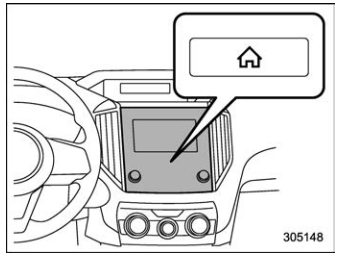
 button.
Select “Settings”.
Select “Vehicle”.
Select “Time/Date” and then select “Manual”.
button.
Select “Settings”.
Select “Vehicle”.
Select “Time/Date” and then select “Manual”.
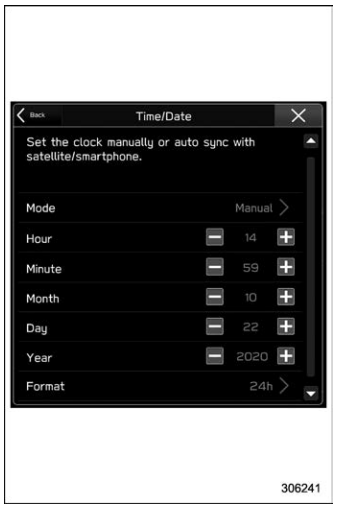
 to complete the
clock
setting.
to complete the
clock
setting.
